About the project
Fahrtenbuch (logbook)
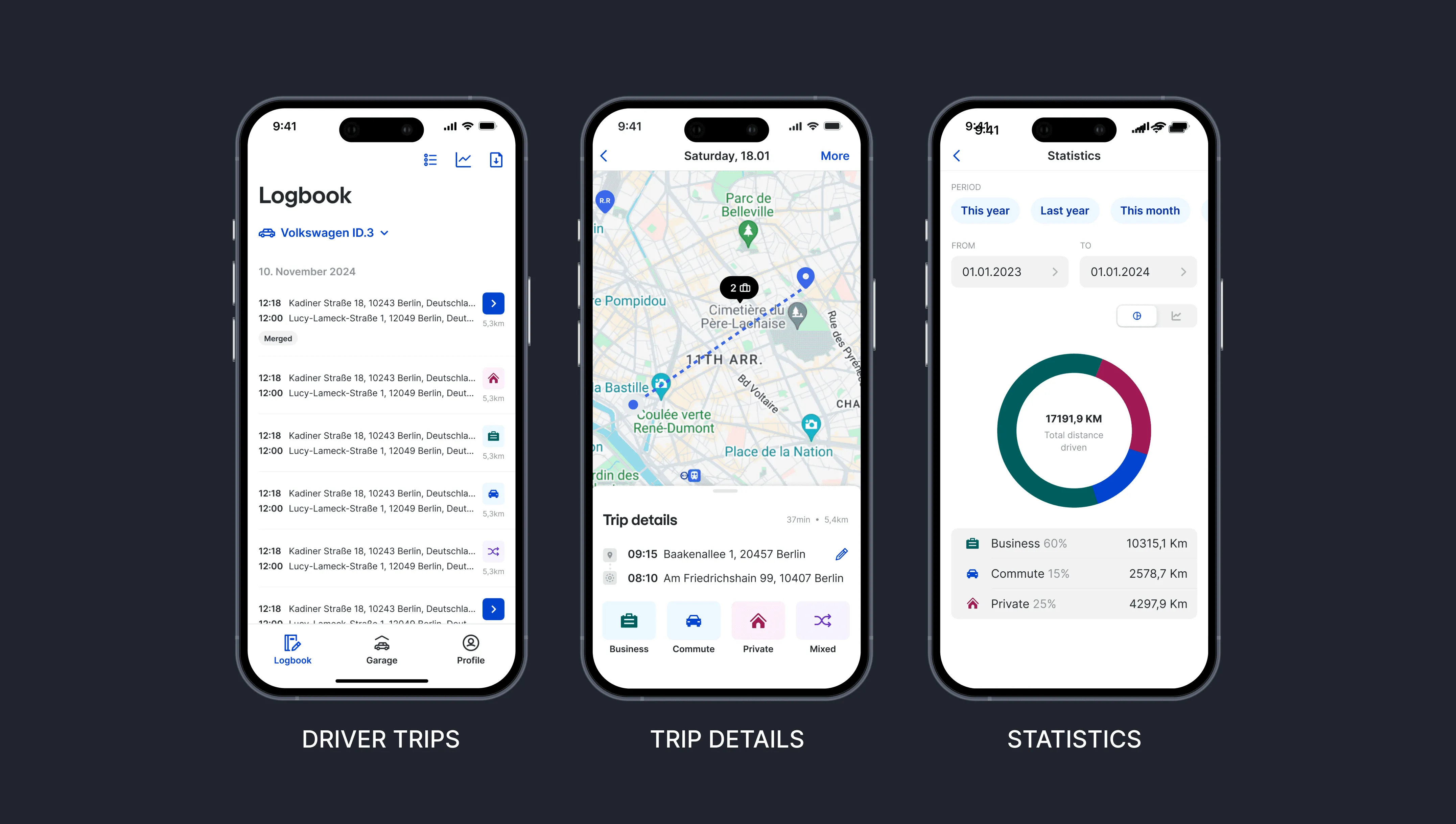
Vimcar's Fahrtenbuch turns every drive recorded by an OBD dongle into a tax-compliant logbook, used by 120,000+ drivers on iOS, Android and the web.
The redesign took a year of research and design. I broke the app's large feature set into user stories and shipped them in focused sprints.
This case follows the two problems that mattered most: drivers giving up during setup, and drivers still typing trips by hand.
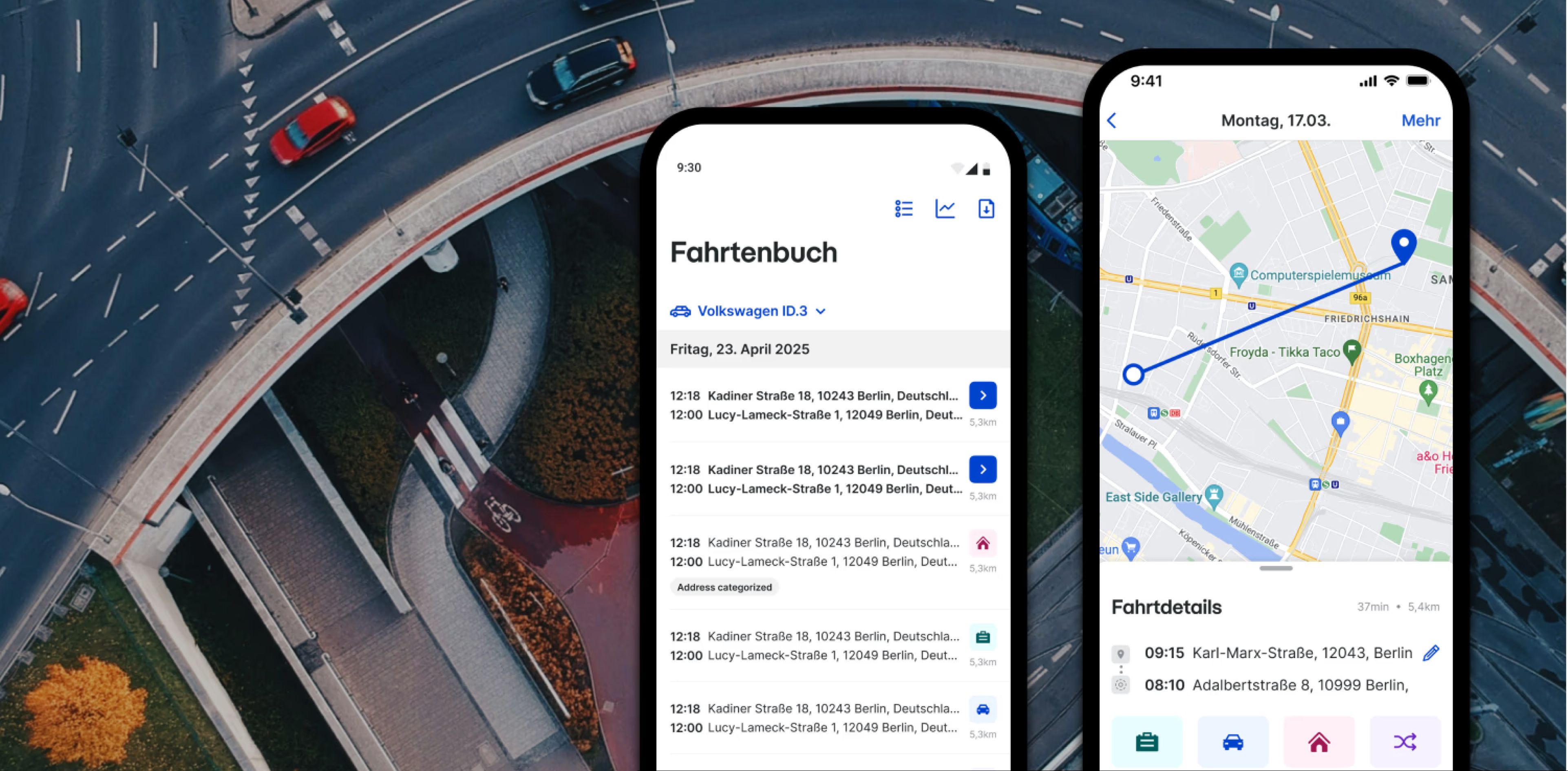
Onboarding completion rose from 80.7% in month 1 to 88.9% by month 3, support tickets fell 24%, and up to 74% of drivers adopted auto-categorisation, on a native iOS/Android app used by 120,000+ drivers.
- Onboarding completion by month 3
- 88.9% from 80.7% in month 1
- Support tickets
- −24% within 90 days
- Auto-categorisation adoption, iOS
- 74% 65.1% on Android, 12 weeks
- Drivers using the app
- 120,000+
- Who Business drivers
People who drive for business most of the month. Fleet managers track company cars on the web.
- What Dongle + app
The dongle captures trips; the app shows them for categorising.
- Why An annual tax report
A logbook their tax advisor and the tax office will accept.
- Owned iOS, Android and web
End-to-end design across the three apps.
- Did Strategy to A/B test
Design strategy, technical architecture with engineers, prototyping, A/B testing.
- Led People and decisions
Mentored junior and mid designers. Presented to product and engineering leadership.
Part 1 · Onboarding
People sent the dongle back before the trial ended
of new customers abandoned onboarding and returned the dongle within the 30-day free trial. Many contacted support about setup.
Setup spans a parcel, a car and a phone, in five steps.
-
1 Create an account, order the box
-
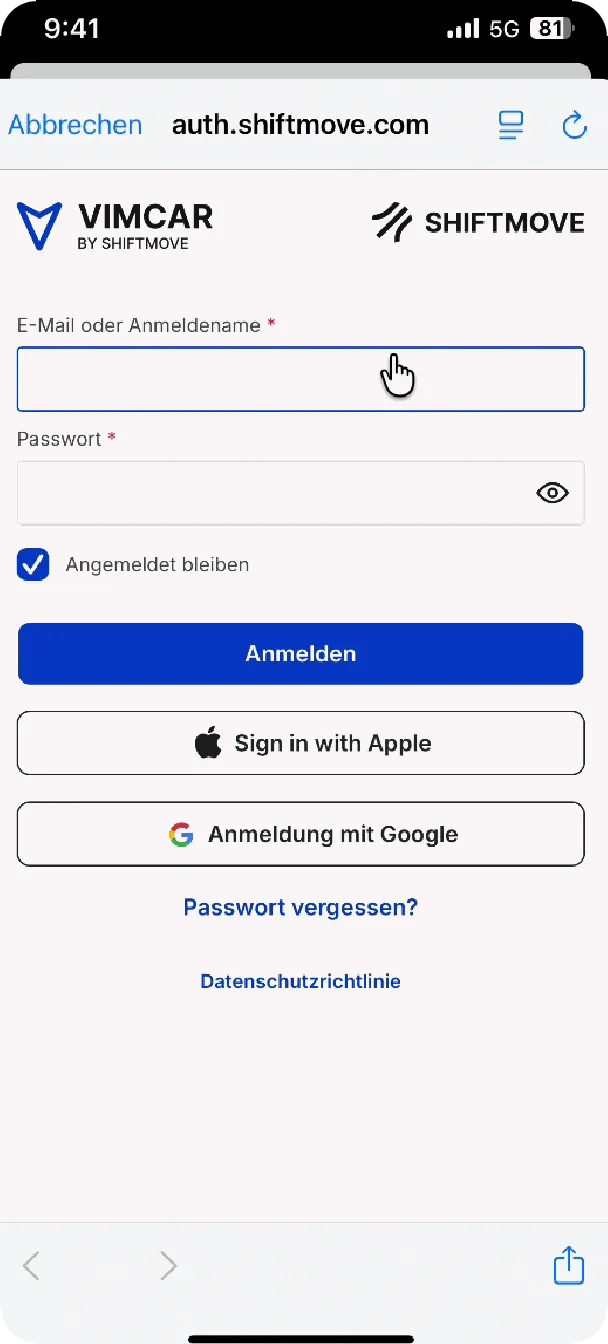
2 Log in
-
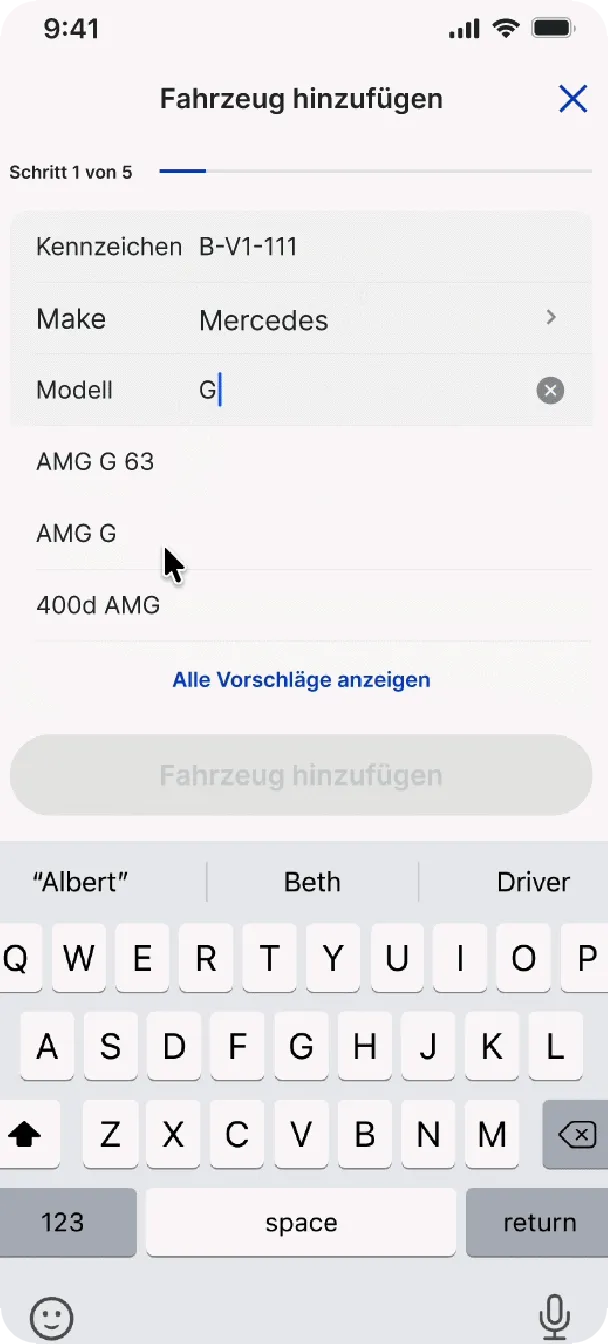
3 Create a vehicle profile
-
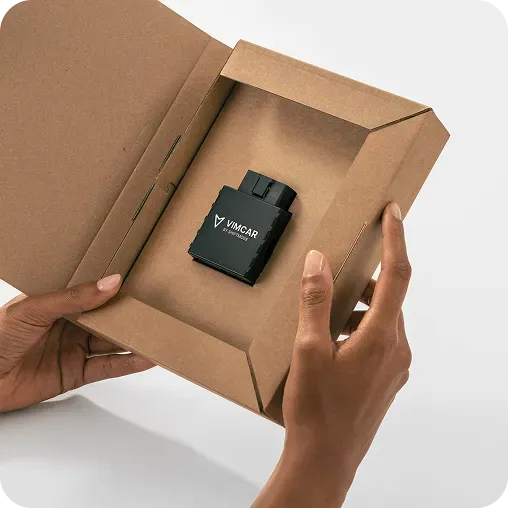
4 Connect the hardware
-
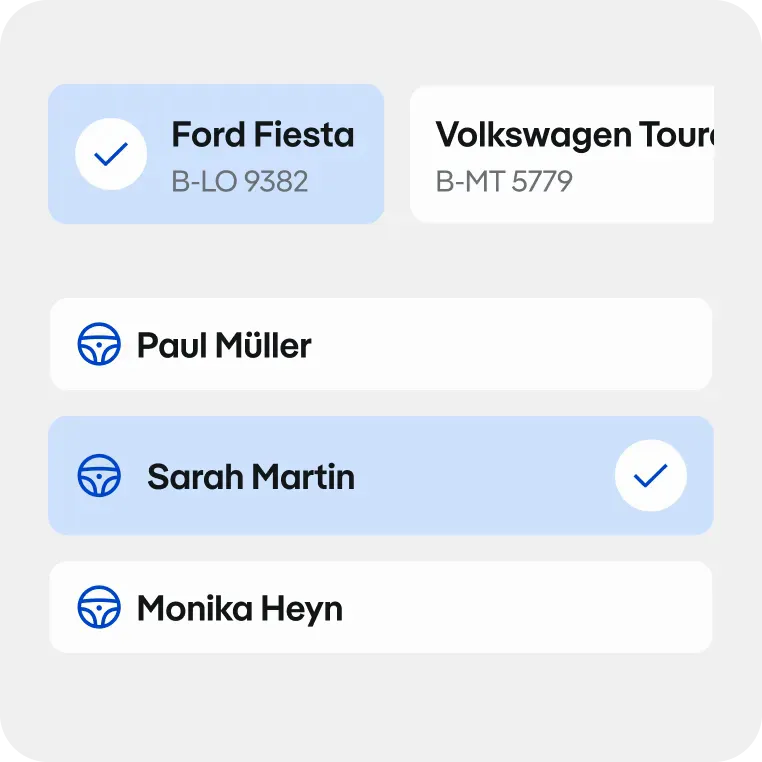
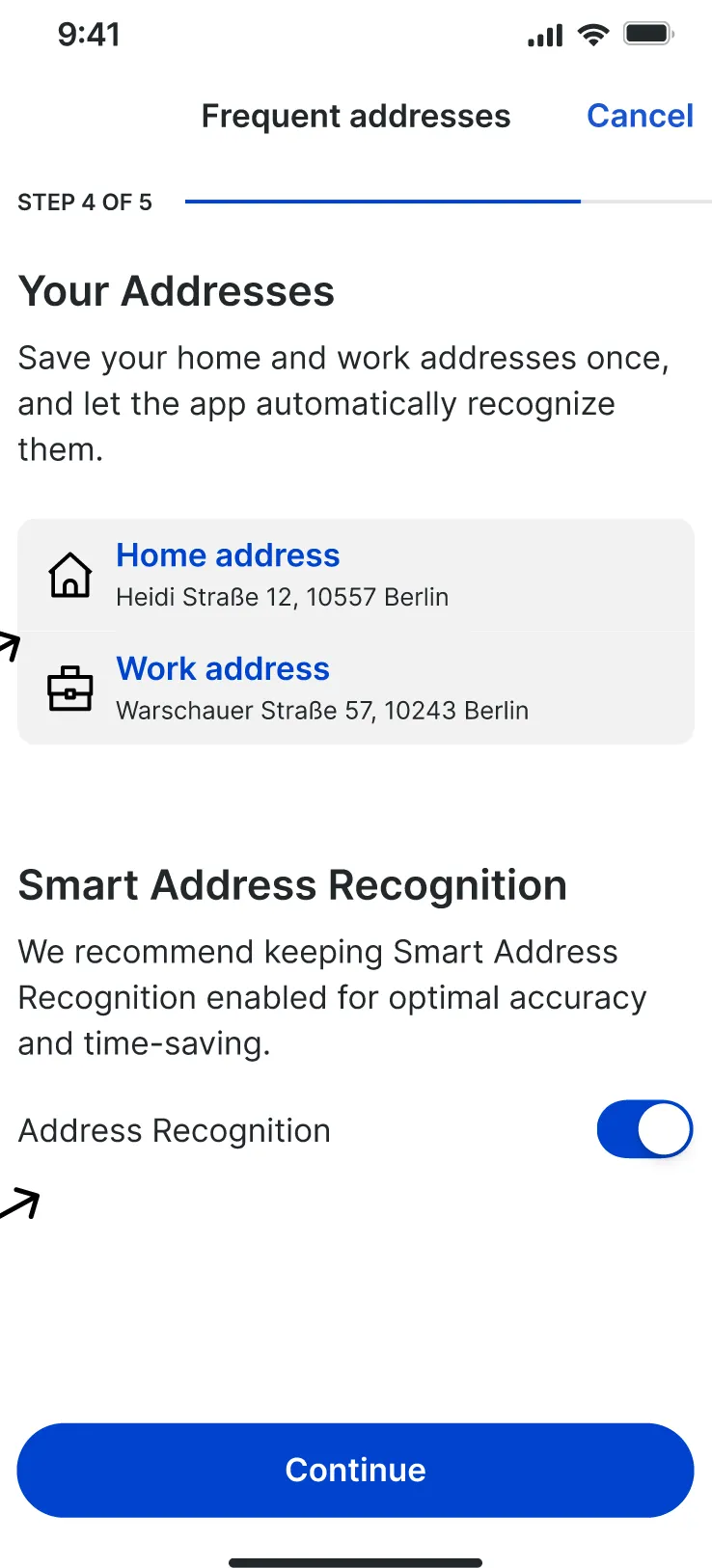
5 Turn on address recognition
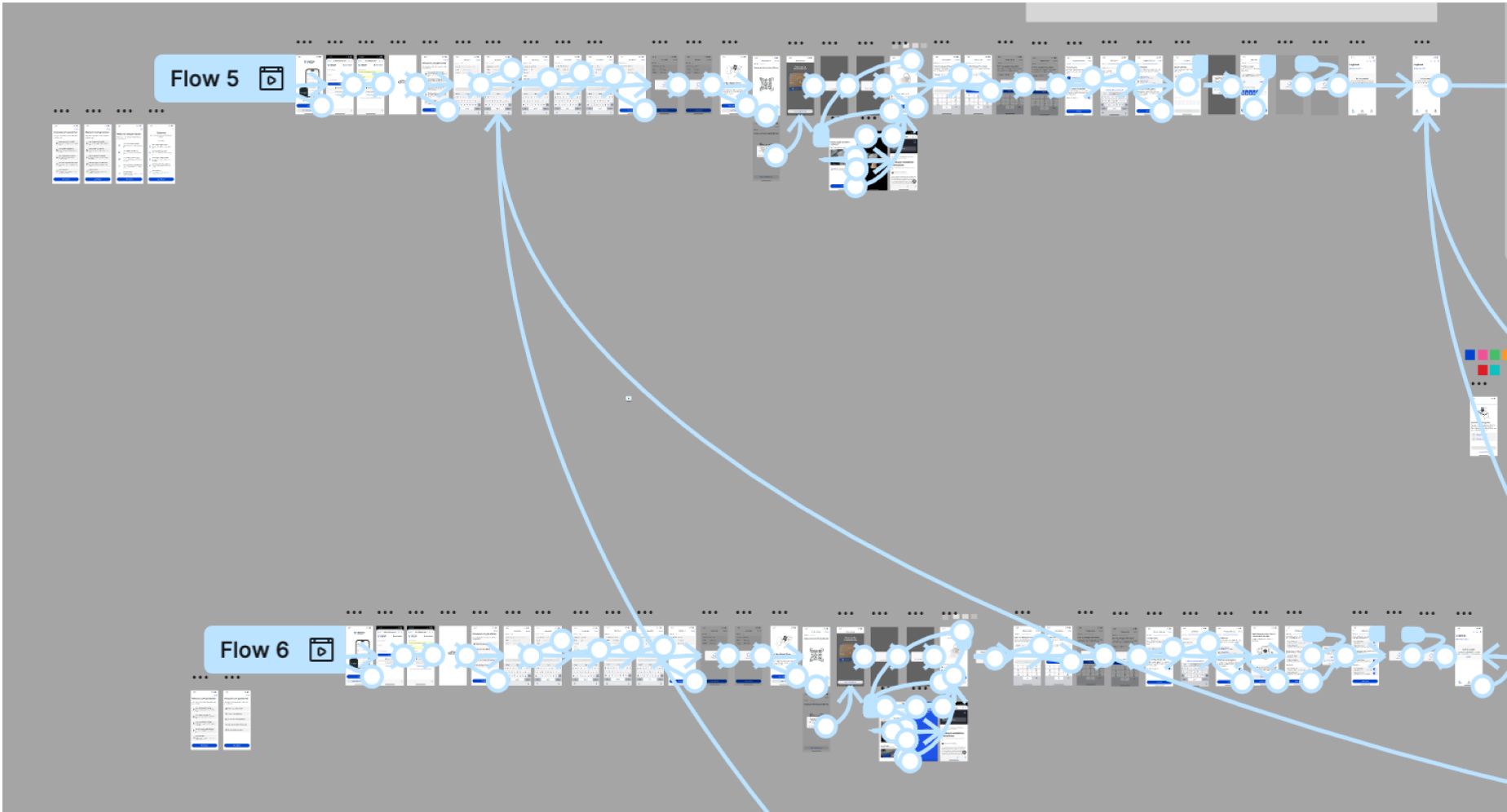
I planned several flows with the mobile team, ran 12 interviews with a research partner, and A/B-tested onboarding concepts.
-
Add the vehicle
-
Connect the hardware
-
Set reminders
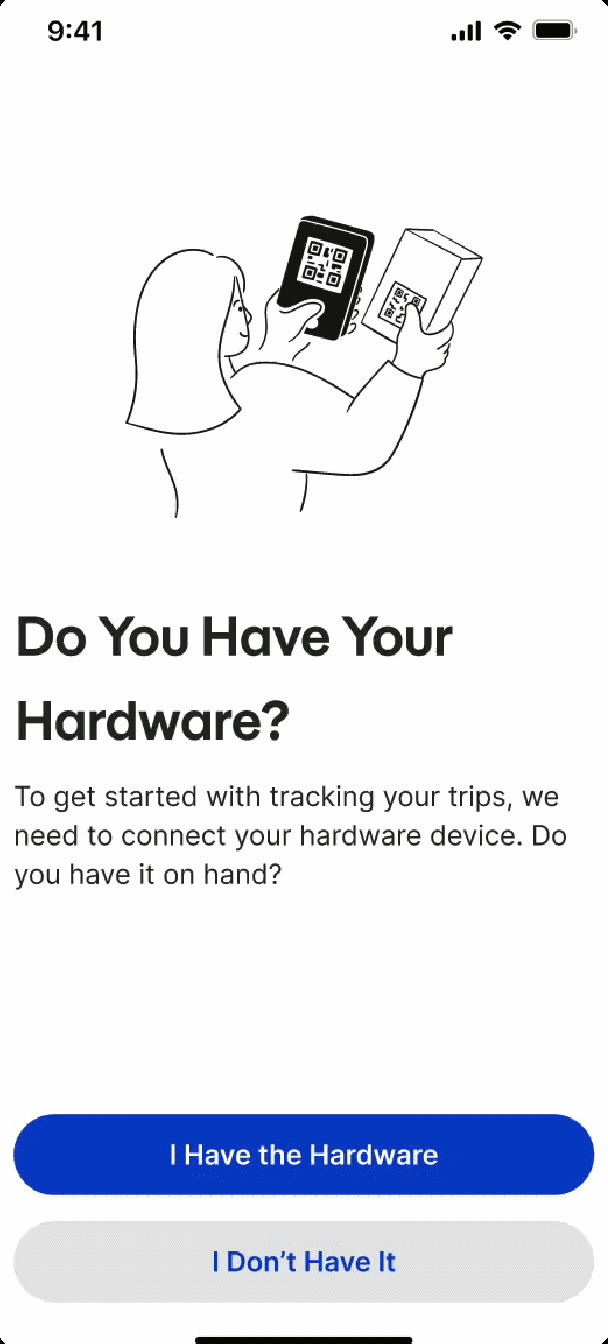
Decision 1
Ask before assuming the hardware is plugged in
- Options
- Assume the dongle is plugged in and start the sync, or ask first and branch.
- Chose
- Open the hardware step with “Do you have your hardware?”. Then scan or type the dongle code, with short install videos for the dongle and the box.
- Why
- Setup problems were driving support contacts, and returned dongles ended trials.
- Gave up
- One extra screen at the start of setup. A shorter flow wasn’t worth the support contacts.
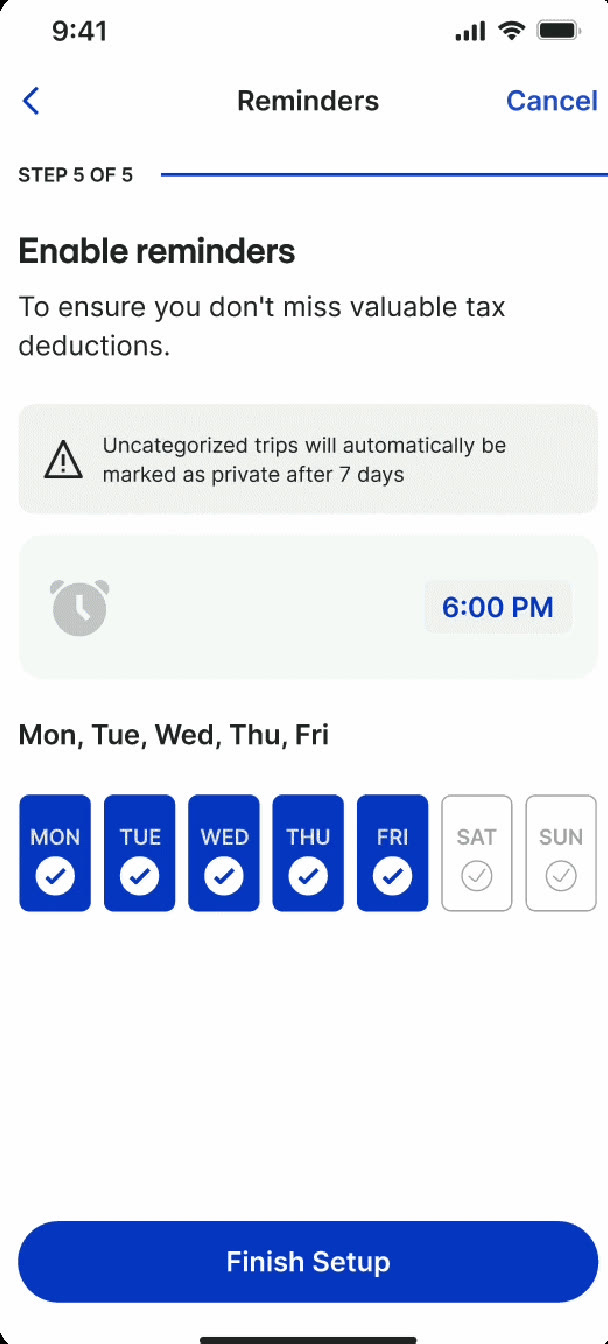
Decision 2
Turn the 7-day rule into a reminder
- Options
- Leave the 7-day rule in the help docs, warn drivers after they’d missed it, or set reminders during setup.
- Chose
- A reminders step that states the rule up front: uncategorised trips become private after 7 days. Drivers pick the days and the time.
- Why
- Trips lock 7 days after the drive, a legal requirement. Missing the window costs drivers tax savings.
- Gave up
- Another step in setup, plus a notification permission request that some drivers decline.
Decision 3
Collect addresses during setup, not after
- Options
- Ask for addresses during setup, or let the app learn frequent places from trip history over time.
- Chose
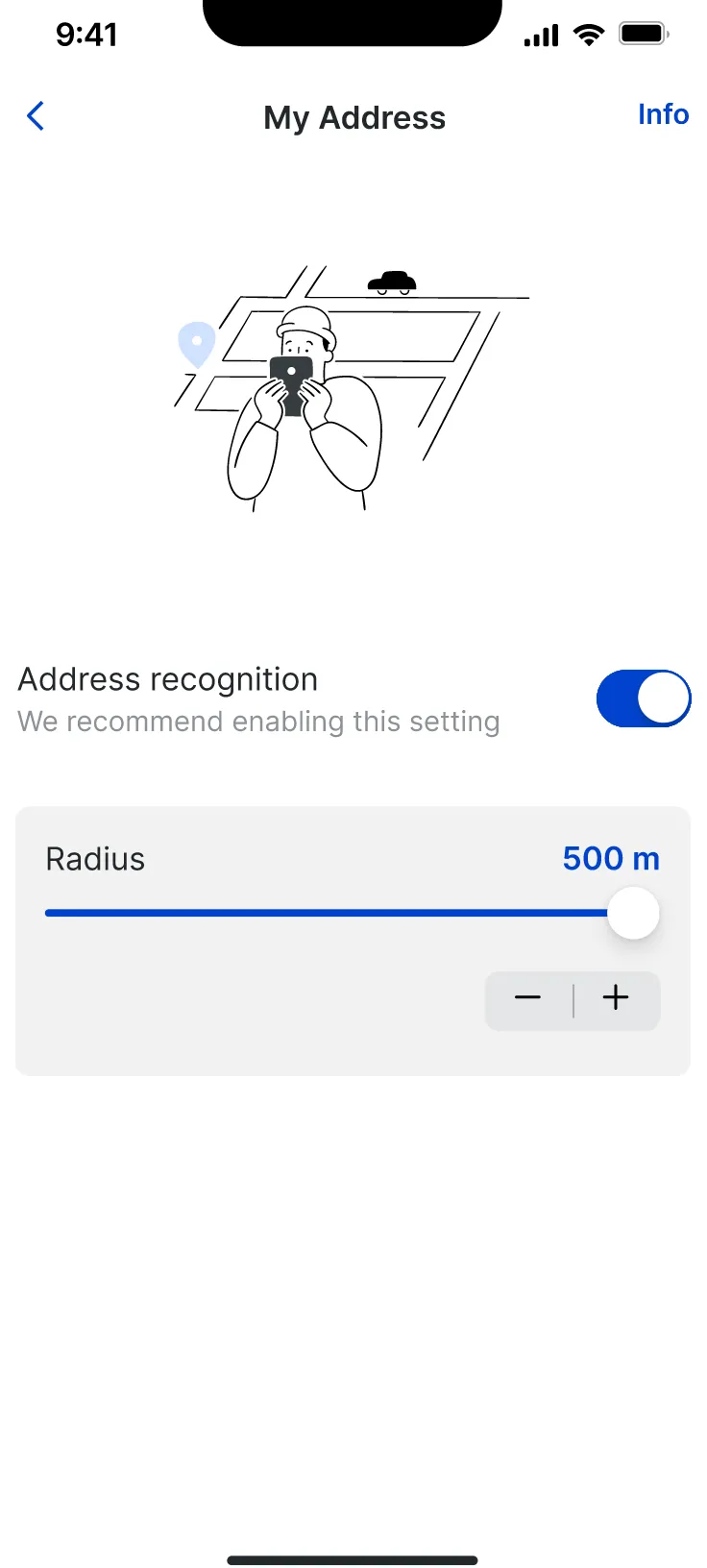
- Step 4 of 5 asks for home and work addresses, with address recognition on by default. Drivers can change it later in settings, including the radius.
- Why
- By the time the trip syncs, the app already knows the addresses, so drivers confirm instead of typing. It sets up Part 2.
- Gave up
- A longer setup, in exchange for useful suggestions from the first trip.
- Onboarding completion, month 1
- 80.7% after launch (BI)
- Onboarding completion, month 3
- 88.9% BI report
- Support tickets
- −24% BI report
Part 2 · Trip logging
An automatic logbook that still made people type
The dongle syncs 15–30 minutes after a trip ends. Drivers recalled destinations from memory and typed partner, company and reason by hand.
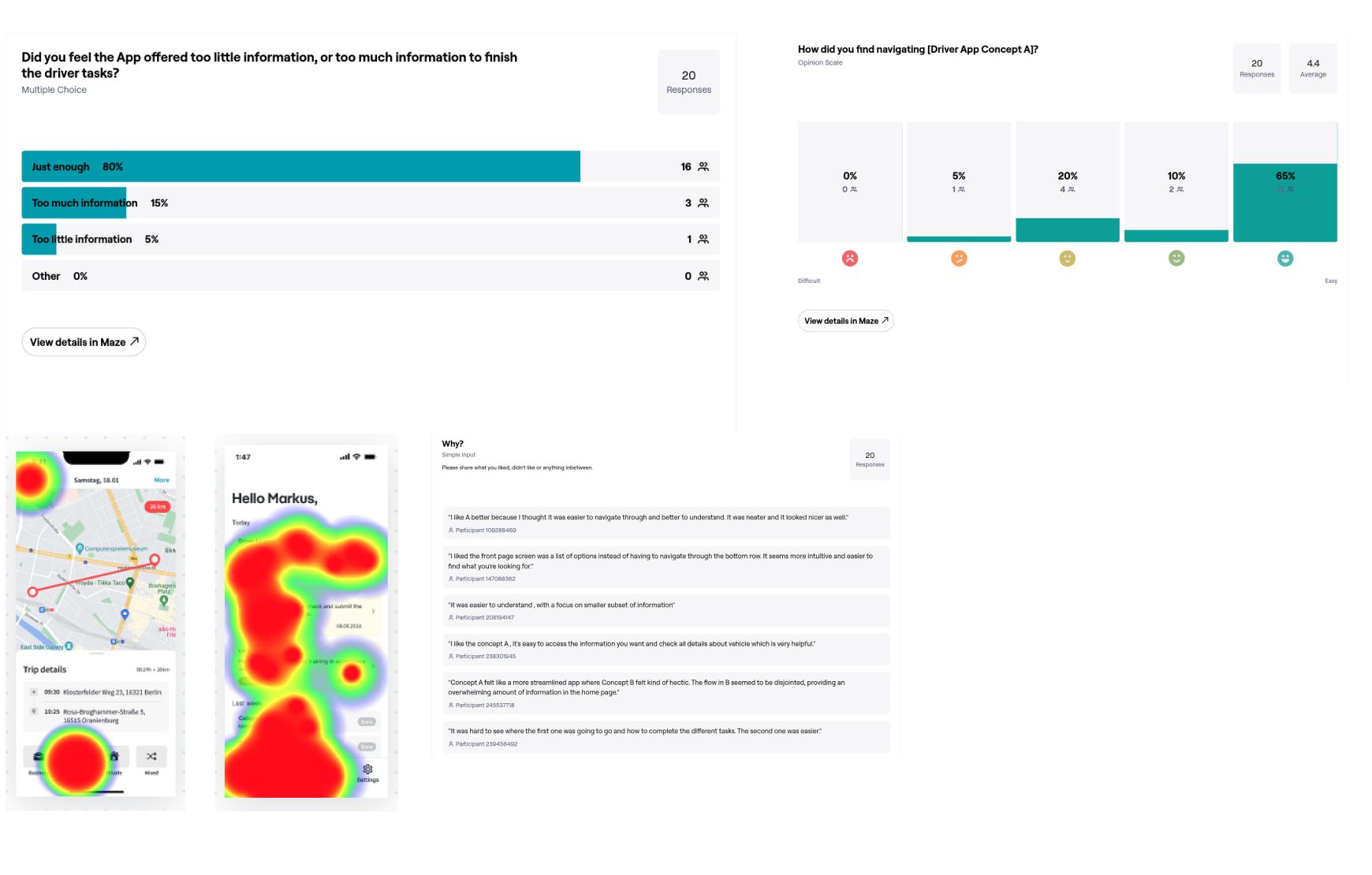
In Maze usability tests, 63% of participants hesitated to categorise right after a trip.
“I wish I could just swipe and be done.”
-
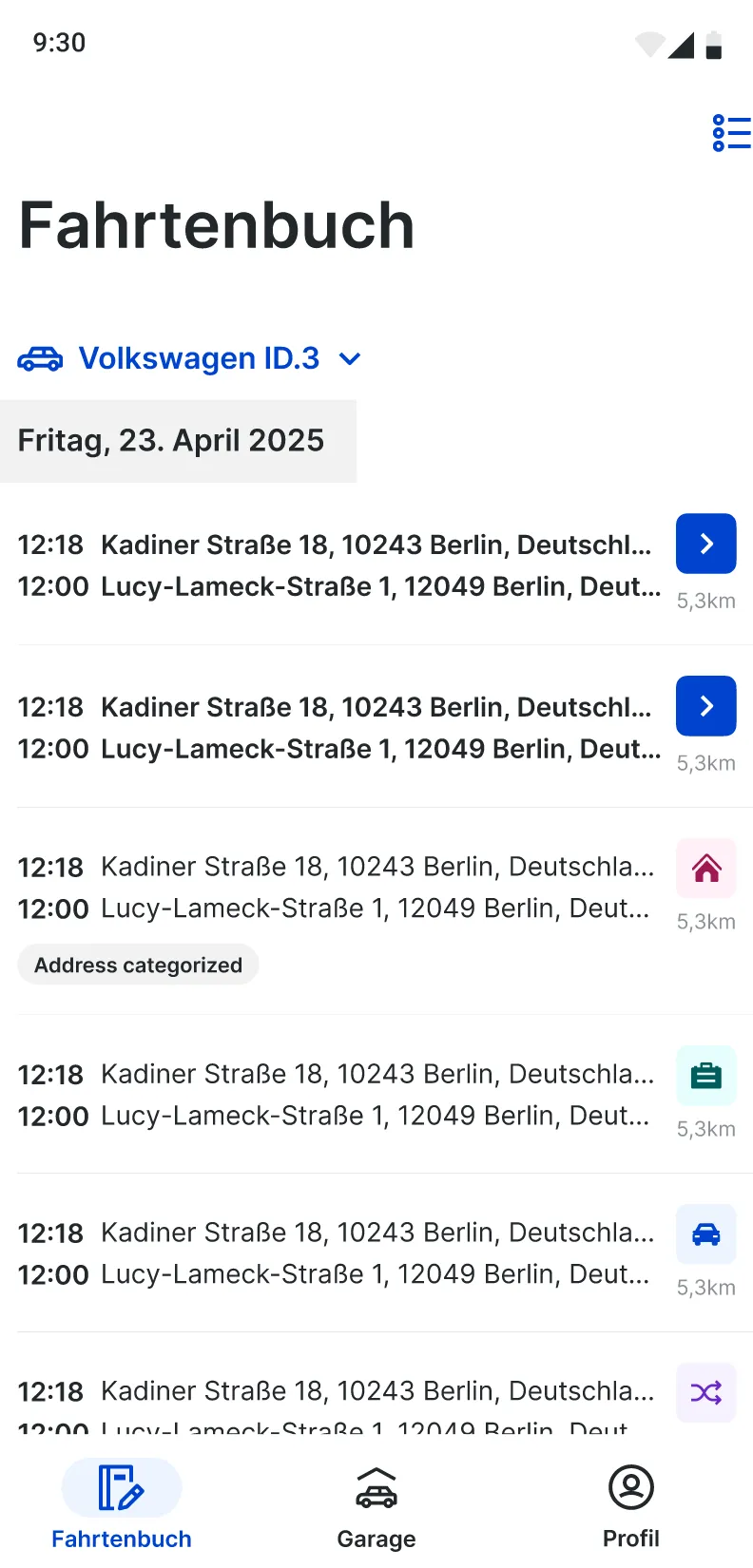
1 Trip list
-
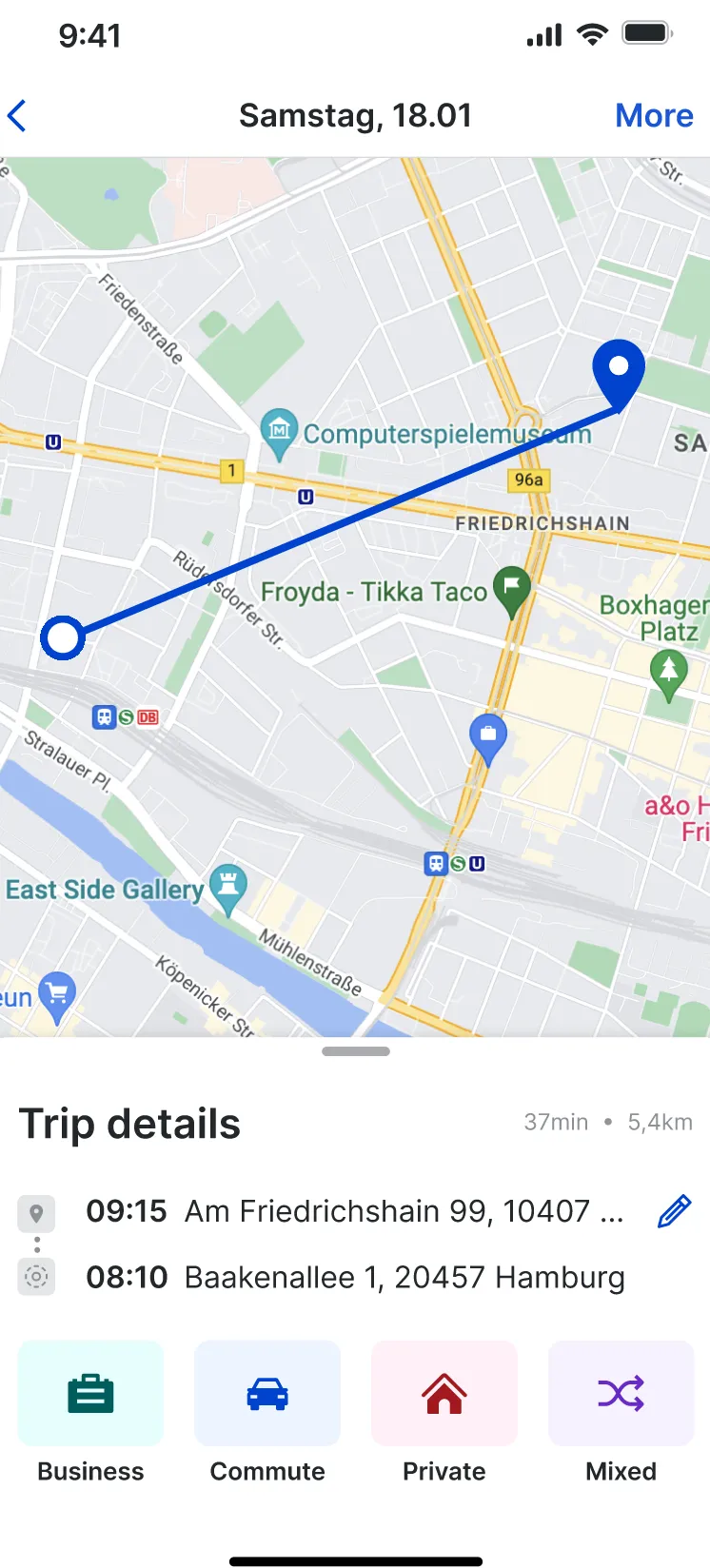
2 Pick a category
-
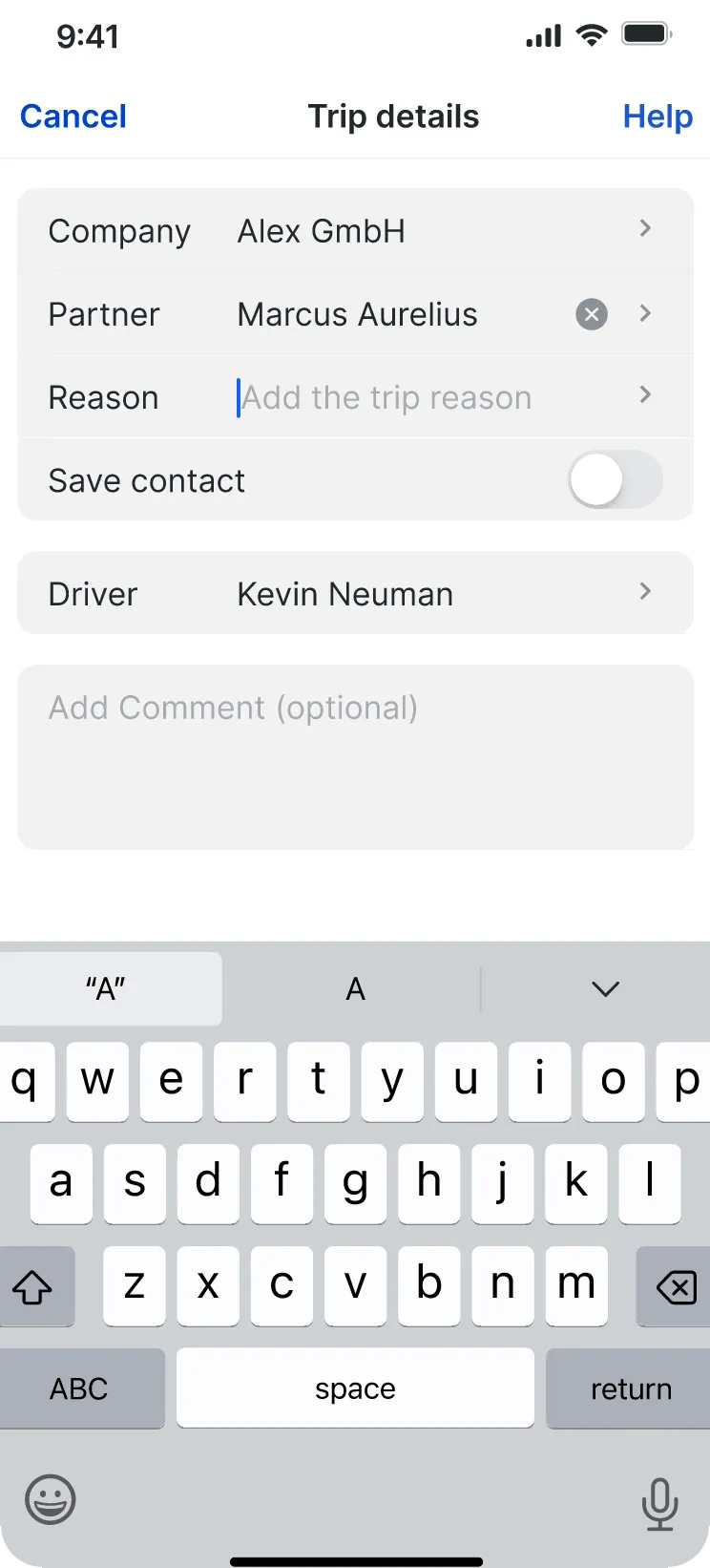
3 Type the details
Partner, company, reason
The goal was to collect context up front, so drivers confirm instead of type.
-
Turn on, get suggestions
-
Fix it on the map
Decision 4
Address snapping: suggest, then confirm
- Options
- Categorise trips fully automatically, or suggest and let the driver confirm.
- Chose
- When a trip ends near a saved contact, the trip shows “Address categorized”. Its details ask “Is this a business trip with Karl Wagner and Vimcar GmbH for the purpose of payment collection?” One tap fills the form.
- Why
- Drivers had been typing from memory. I tested address recognition concepts with 20 users in an A/B test.
- Gave up
- Full automation. Drivers still tap once, because the logbook is a tax document and the driver has to stand behind each entry.
-
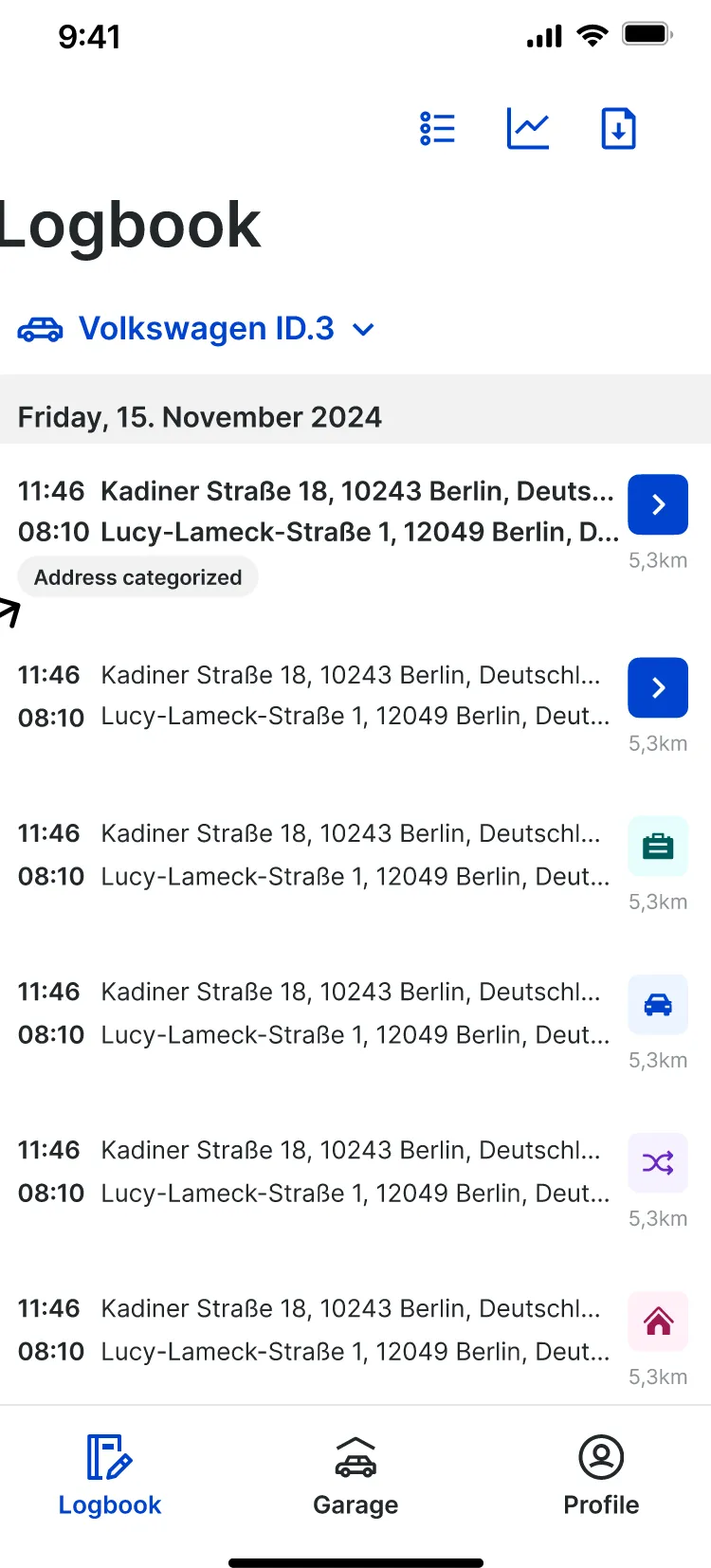
1 Recognised in the list
-
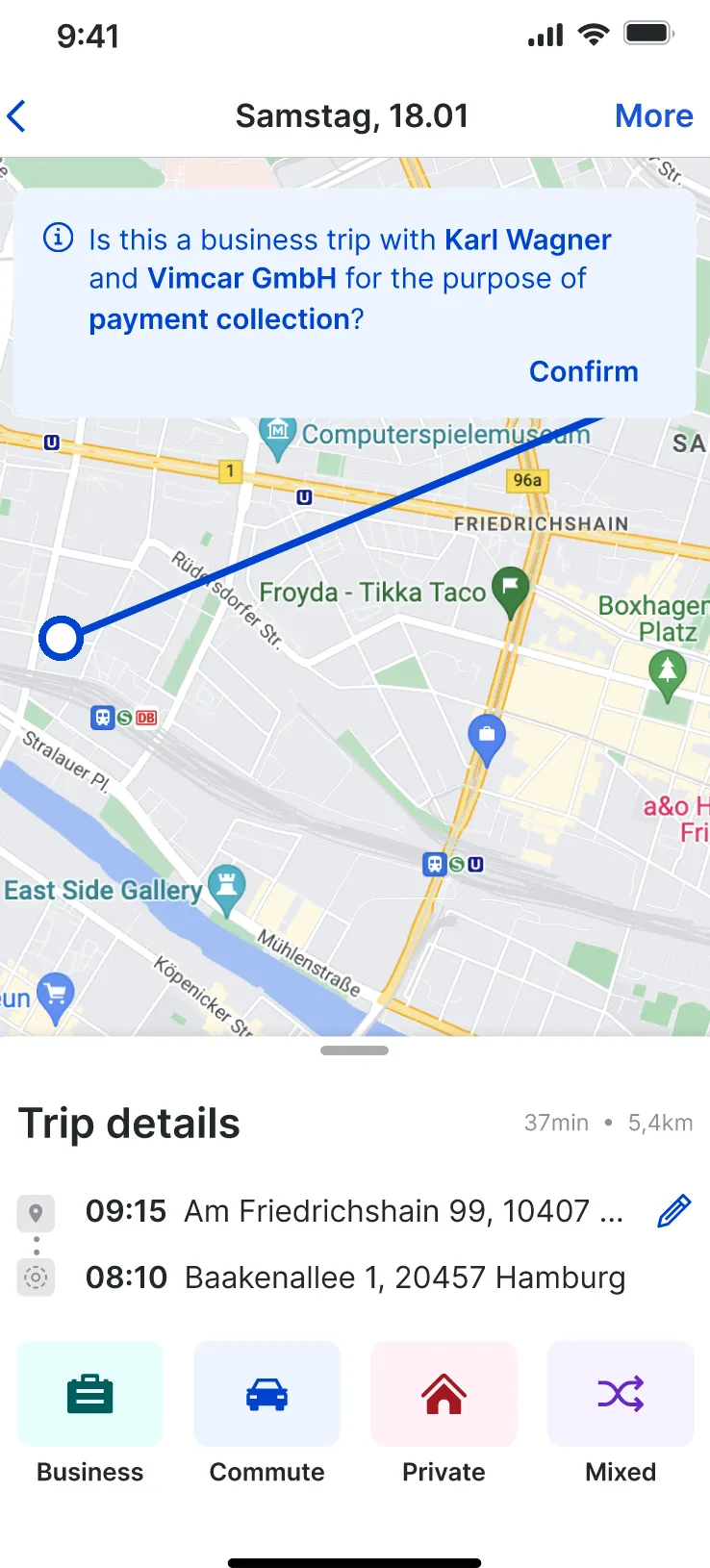
2 Suggestion on the trip
-
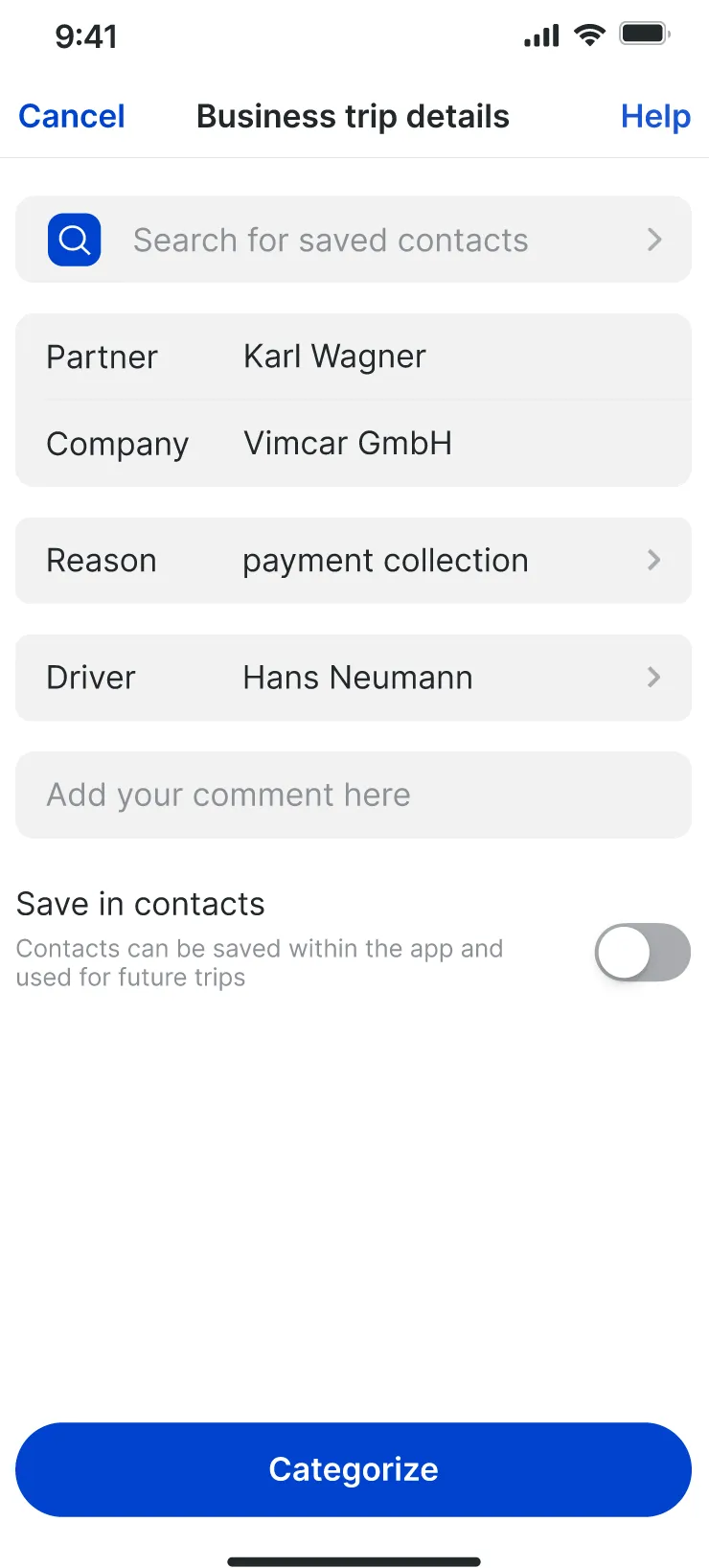
3 Pre-filled, one tap
Outbound · categorised by address snapping
AB
OfficeCustomer
Return · now suggested as well
BA
CustomerOffice
Decision 5
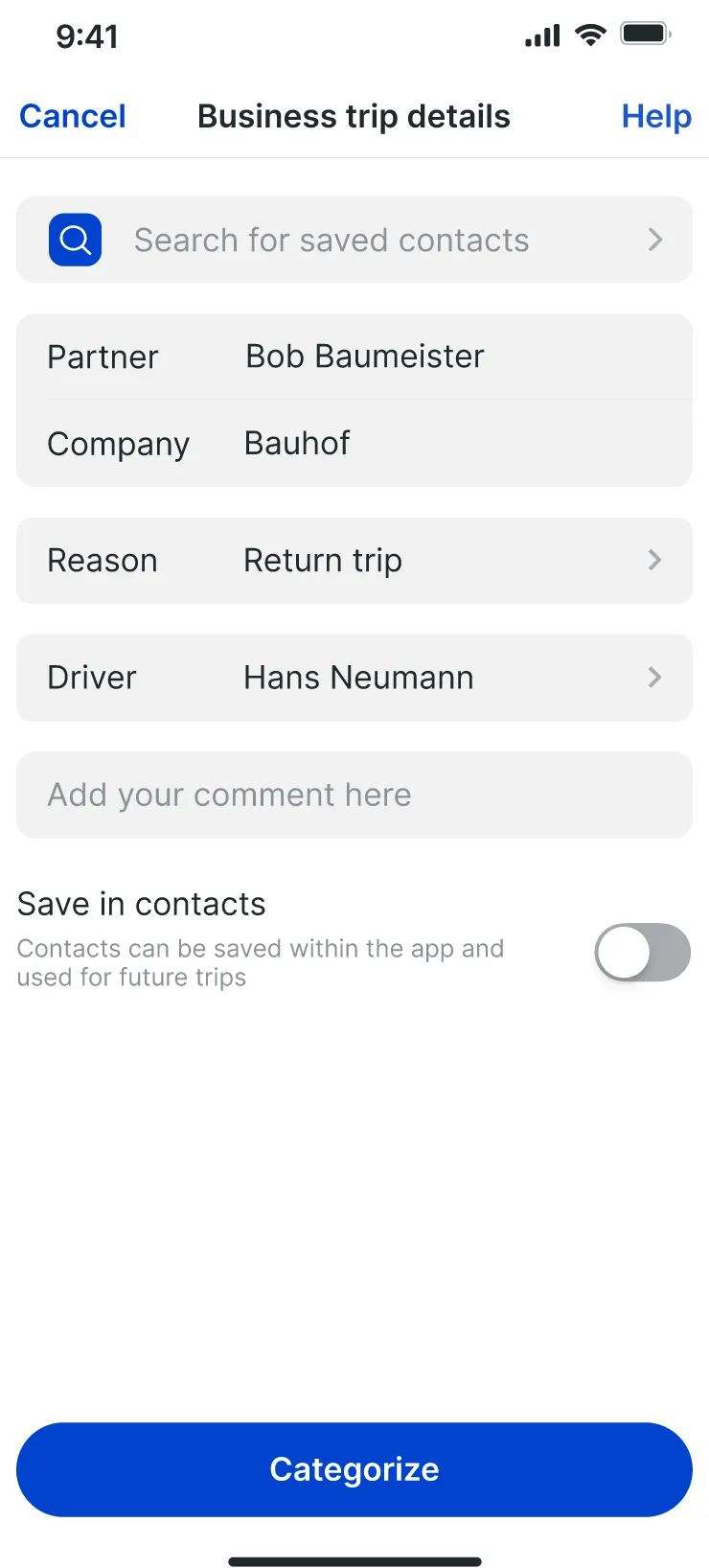
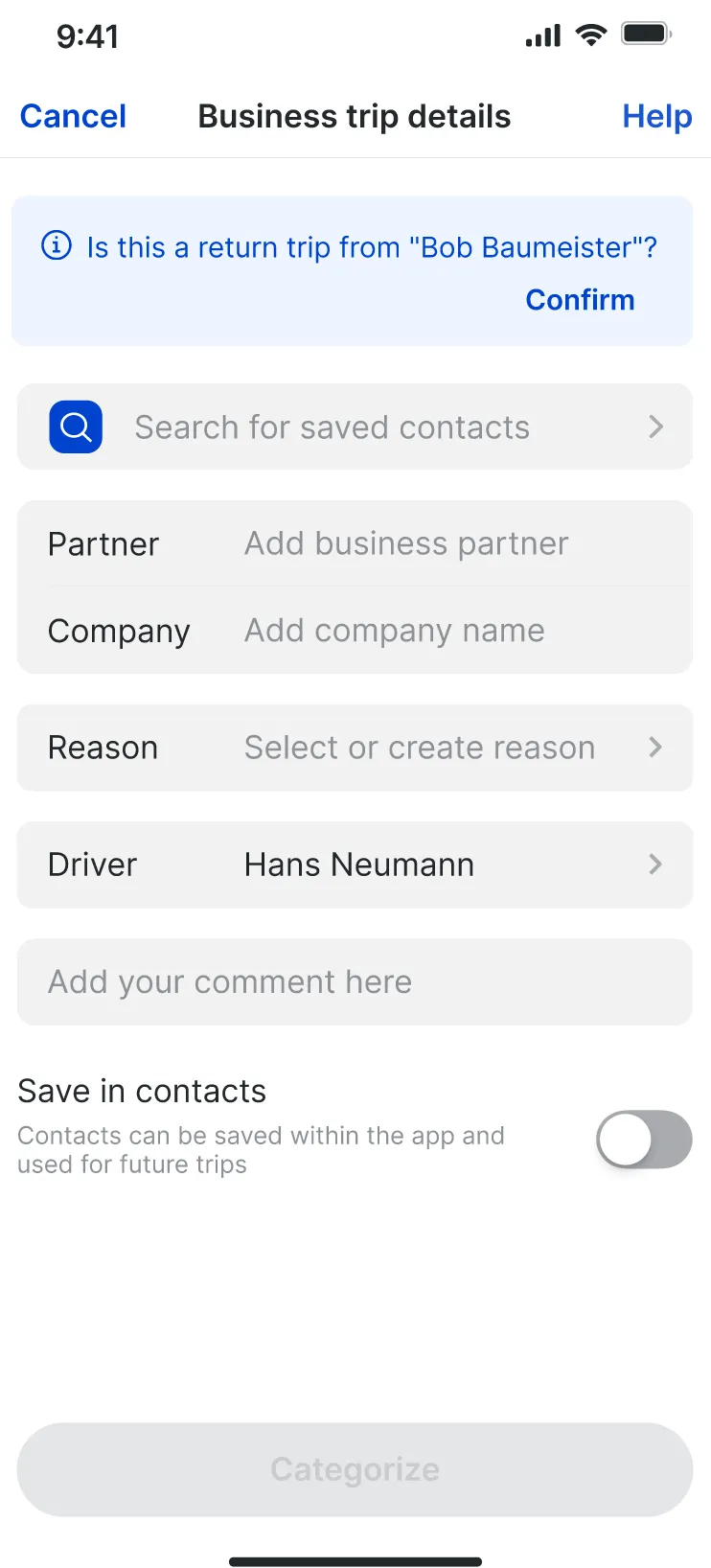
Return trips: the second leg is a question, not a form
- Options
- Copy the outbound category to the return trip silently, or ask.
- Chose
- Detect the return journey and ask “Is this a return trip from Bob Baumeister?”. Confirming fills partner, company and the reason “Return trip”.
- Why
- Users told us they wanted return trips auto-categorised.
- Gave up
- Silent automation. Asking costs a tap, but a wrong silent guess would end up in a tax record.
-
Swipe a row
Decision 6
Swipe to categorise, for everything else
- Options
- Swipe to categorise, or hold to categorise. I tested both in Maze.
- Chose
- Swipe won in testing and became the main action: swiping a row reveals Business, Commute and Private without opening the trip. Tapping still works for drivers who don’t swipe.
- Why
- A test participant asked to “just swipe and be done”.
- Gave up
- Swipe hides the actions until you discover the gesture, so the tap path stayed for drivers who never swipe.
- Quick categorisations, first 90 days
- 971k ≈10% of all 9.6M categorisations
- Auto-categorisation adoption, iOS
- 74.0% 12 weeks
- Auto-categorisation adoption, Android
- 65.1% 12 weeks
Auto-categorisation adoption within 12 weeks
- iOS 74.0%
- Android 65.1%
“Address snapping + recognition work perfectly.”
Platform decisions
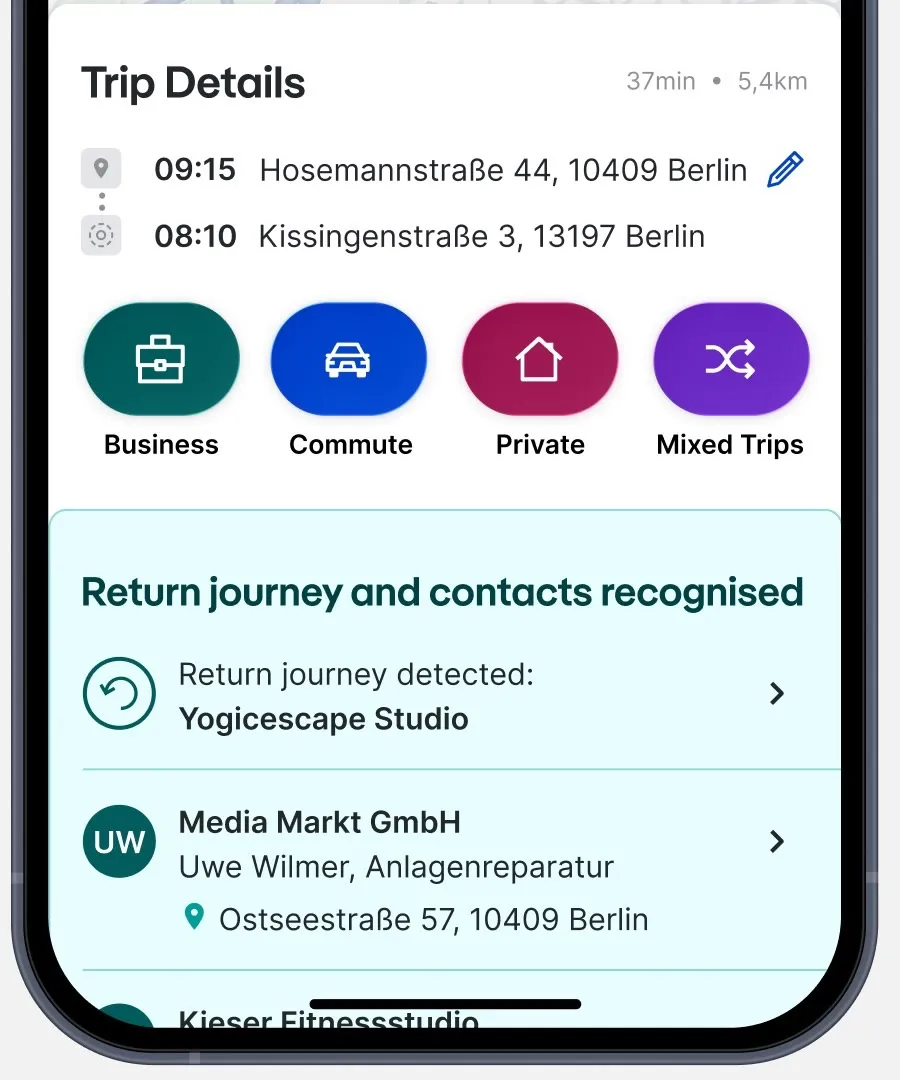
iOS
Android
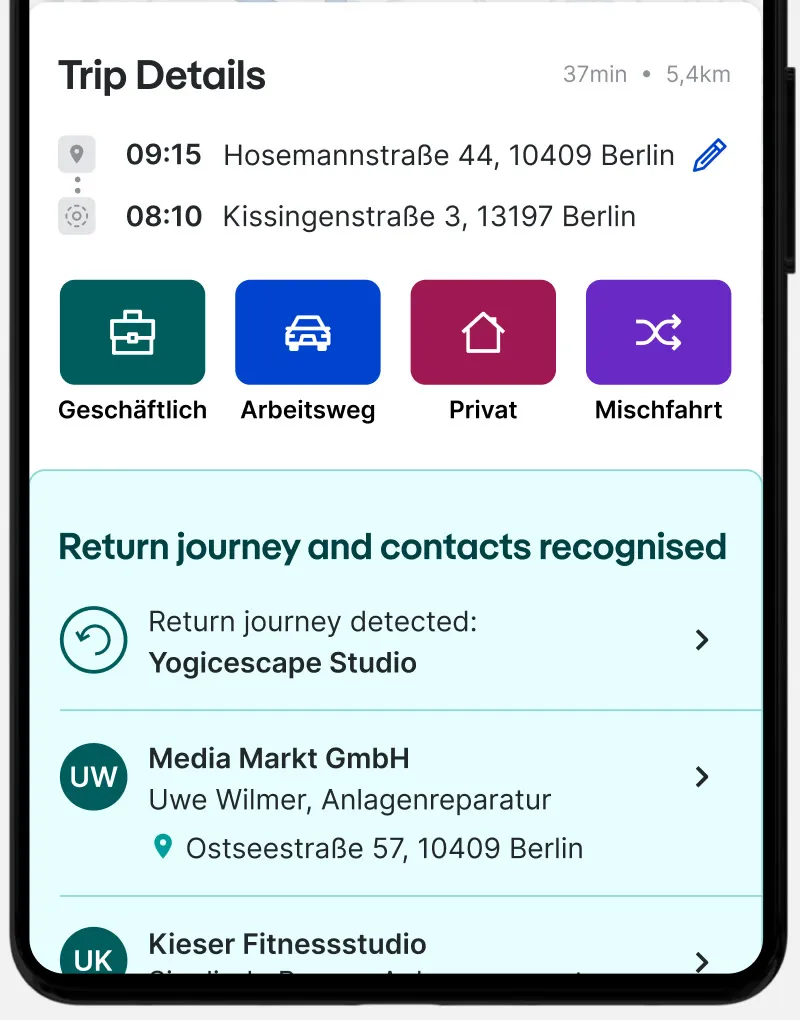
Same layout and colours on both, with each platform’s native shapes, so the app felt native on both.
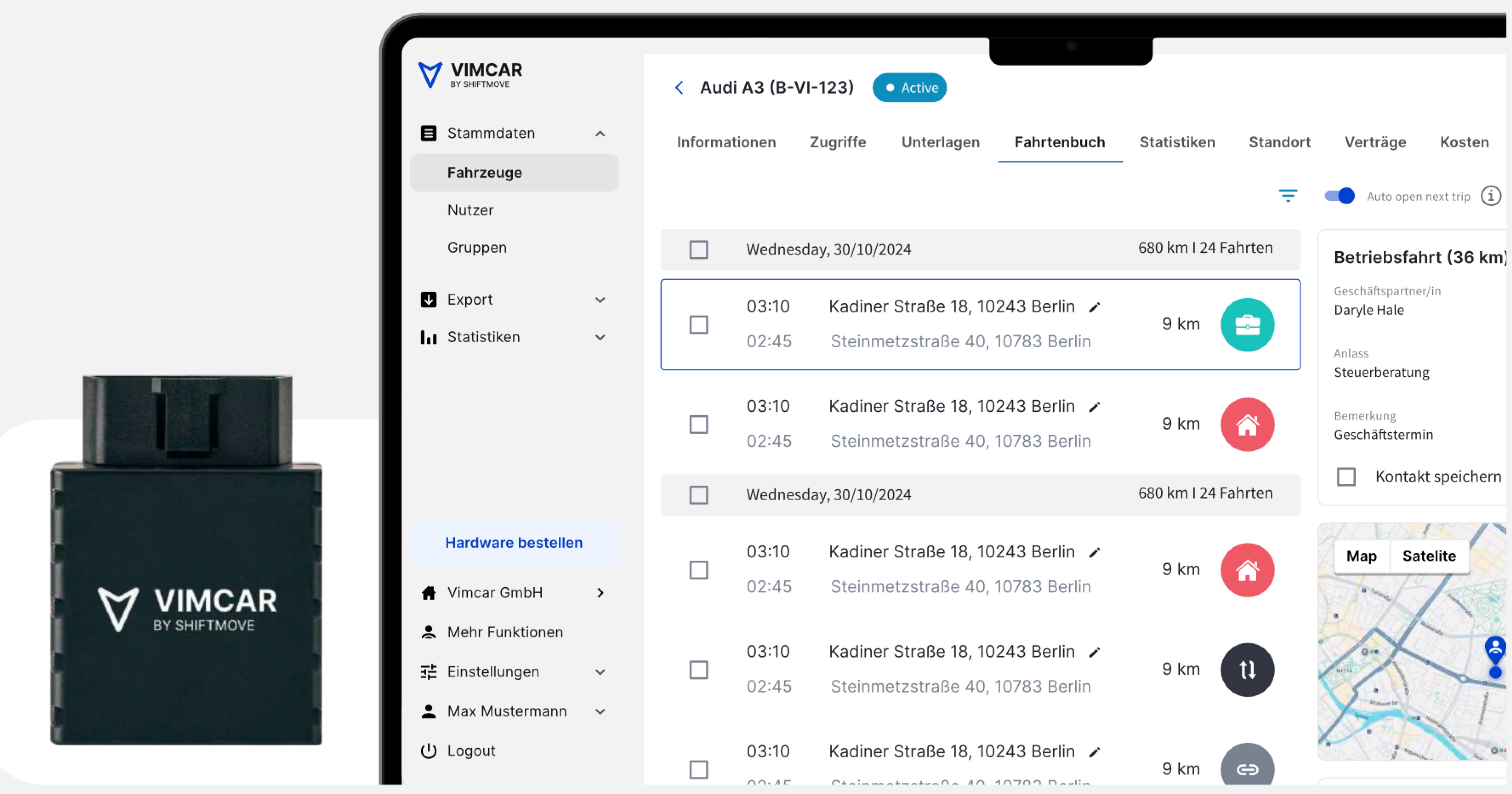
Fleet managers, on the web
Drivers categorise on the phone. Fleet managers review company cars on the web. The same trip rows and categories carry over to a desktop layout.
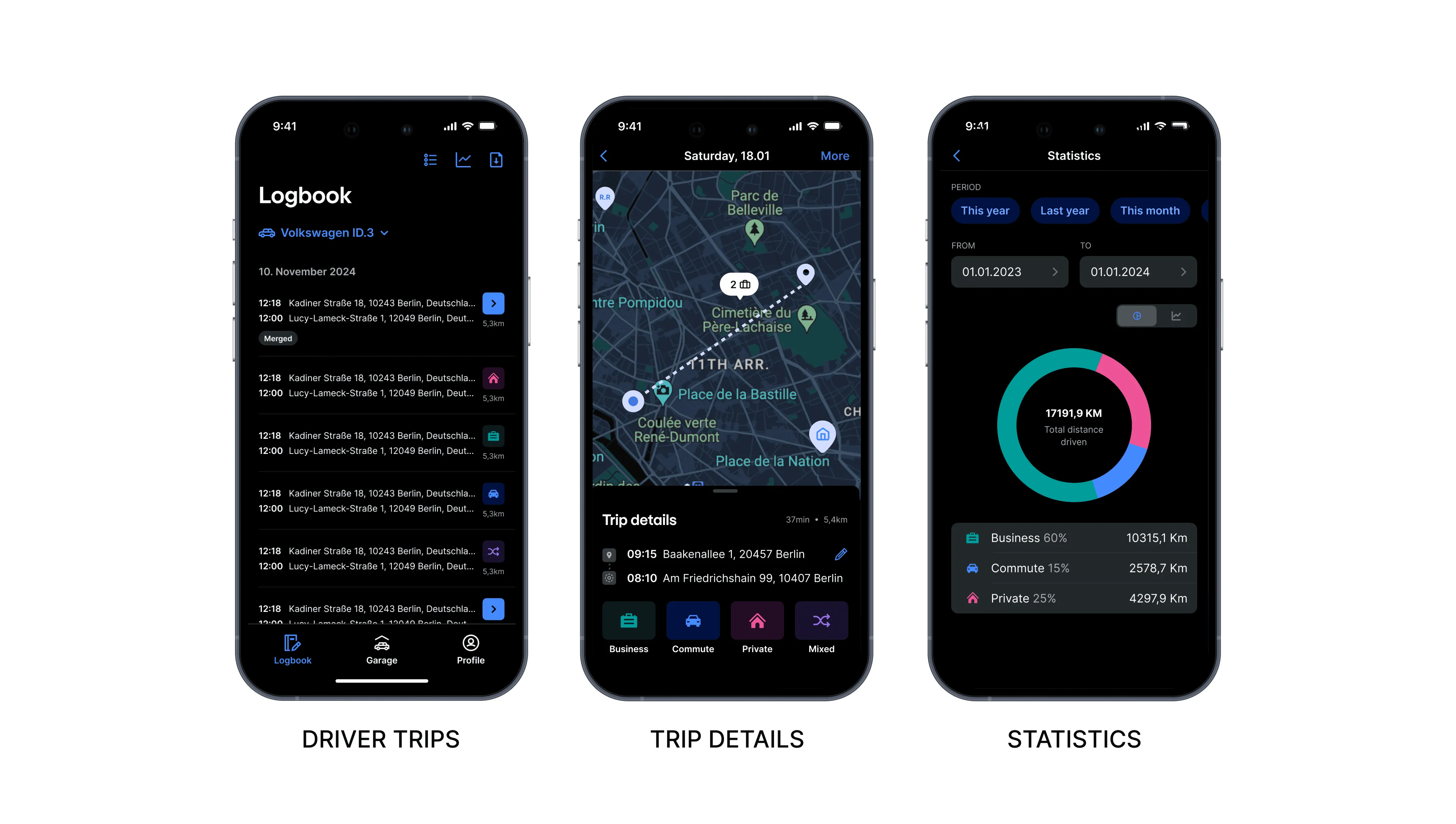
Day and night
What I’d do next
Let drivers confirm a whole day’s suggested trips in one action, and learn from each confirmation so suggestions improve over time.